Always there
Above everything.
A borderless floating panel that rides over every window and full-screen app, like picture-in-picture.
Always-on-top clock for Mac · v1.6.1
For anyone who looks up and realises three hours just vanished. Glint floats above every window, ticks like a real clock and flashes the moment a minute or hour changes.
The problem
How it works
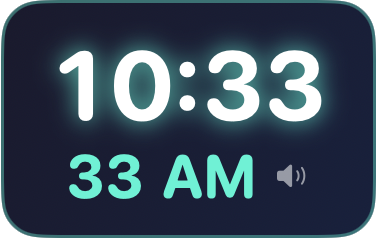
Deep base colour, glowing digits, a soft tick and tock every second.
A warm amber-to-red wash fades in: a change is coming.
A teal burst and a single chime. Another minute, gone.
A bigger orange-to-magenta burst and a double chime.
A violet blink and a triple chime: time check, maybe a break.
Features
Always there
A borderless floating panel that rides over every window and full-screen app, like picture-in-picture.
Interval nudges
Every 15, 25, 30 or 60 minutes Glint blinks and chimes: a deliberate time check.
Focus blocks
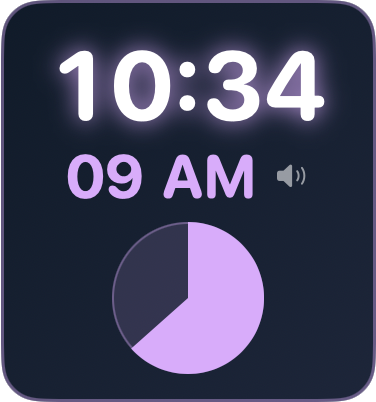
Start a 25 or 50 minute block. A live countdown sits on the face and Glint celebrates when it ends. A shrinking ring or emptying disk shows time running out. You see it instead of reading digits.
Dial Mode
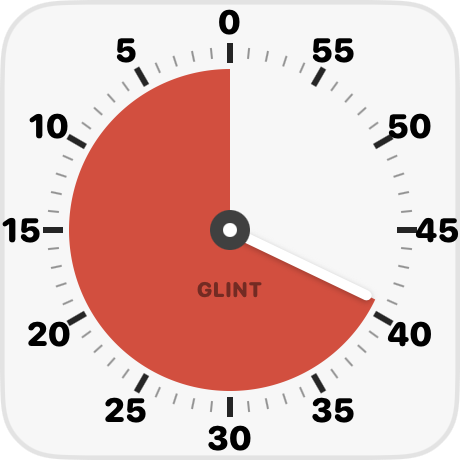
The whole face becomes a red-disk dial with a 0–55 minute ring. Pure, glanceable, number-light time.
Auto-mute
Ticking goes quiet while your mic is in use. No microphone permission: it only reads device state.
Real tick and tock every second, chimes on the minute and hour. All sound is synthesised in code.
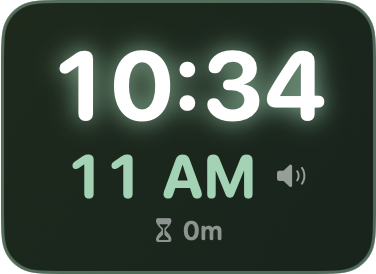
Start, pause, resume and reset a count-up timer right on the clock face.
See how long you've been at it this session, with a one-click reset.
Swaps the alarm-style bursts for gentle depletion, so you stay aware without the anxiety.
Indigo, Midnight, Forest, Slate and Crimson. Three sizes, three flash strengths, 12 or 24 hour.
One toggle and Glint is always there. Drag it to any corner; it remembers everything.
Showcase
Setup
Grab the 3.5 MB universal DMG from GitHub Releases.
Drop Glint into Applications. That's the whole install.
Right-click → Open the first time. The clock lands top-right.
Every minute, a glint. Every hour, a burst. You stay in your day.
Private by design
network requests. Nothing ever leaves your Mac
forever. Free and open source under MIT
states that turn time into light
audio files. Every tick and chime is synthesised
“Inspired by research showing that watching time visibly shrink, rather than decoding digits, helps self-regulation and lowers anxiety.”
FAQ
Glint is a free, open-source macOS clock for people who lose track of time. It floats above every window, ticks like a real mechanical clock, and flashes in bold colour when a minute or hour changes, so you feel time passing without having to remember to look.
Glint was built for people who look up and realise hours have vanished, including many people with ADHD or time blindness. It makes time ambient: a warm wash before each minute ends, a flash and chime when it changes, interval nudges, and a visual depletion dial inspired by research on number-free timers. It is a tool, not a medical treatment.
Yes. Glint is completely free and open source under the MIT licence. No ads, subscriptions, in-app purchases or accounts.
Glint runs on macOS 13 Ventura and newer, on both Apple silicon and Intel Macs. The download is a universal app of about 3.5 MB.
Not if you turn on Auto-Mute in Calls. Glint silences itself while your microphone is in use. It checks only whether the input device is running, so it needs no microphone permission and never hears anything. You can also mute ticking any time with ⌘M.
Yes. Start a 25 or 50 minute focus block from the menu bar. The countdown shows on the clock face, the depletion ring or dial empties as you go, and Glint blinks and chimes when the block ends.
No. Glint makes no network requests and has no analytics or accounts. Its only stored data is your preferences, kept on your Mac.
Glint isn't notarised by Apple yet, which needs a paid developer account. Right-click Glint in Applications → Open → Open, once. On macOS 15 and later you may need System Settings → Privacy & Security → Open Anyway. The source code is public, so you can also build it yourself.
Free forever. Sits quietly in the corner until a minute goes by.
⬇ Download Glint for MacFirst launch: right-click Glint in Applications → Open → Open. Requires macOS 13 Ventura or later · Apple silicon & Intel.